Unity Game Optimization: A Practical Guide to Faster, Smoother Games in 2026
What we check first, what we fix first, and why the frame counter in the Editor shouldn’t be trusted with either.
Your build holds 60 frames per second in the Editor, on a workstation that doesn’t even spin its fans up. Then QA installs it on a three-year-old mid-range Android phone. For the first minute nothing looks wrong. By minute six the back of the phone is warm and the counter has slid into the low thirties. Then a wave of forty enemies drags it under 20, often enough for Google Play to log the session as slow. Nobody touched the code between those two runs. The hardware changed, and then the temperature did.
Unity game optimization mostly lives in that gap. It’s rarely one clever trick. Most of the fixes that matter are dull ones: a texture imported four times bigger than anyone will ever see it, a script grabbing fresh memory sixty times a second, a UI canvas that rebuilds itself because a timer ticked. Picking which dull fix goes first is the hard bit. That’s a measuring problem long before it turns into a coding one. We’d take a boring fix with a number next to it over a clever one with a hunch next to it every time.
Google Play has opinions here too. Once more than a quarter of a session’s frames take 50 ms or more, Play calls that session slow, and Google says it’ll eventually nudge players away from games that can’t manage 20 FPS. Crashes are punished already. If 8% or more of one phone model’s daily users hit a crash or a freeze, owners of that model get pointed at other games. So we’ve laid this out the way we’d run a real performance pass: profile, set budgets, fix scripts, rendering, memory and platform settings, then walk one scene through all of it before the checklist.
Why Performance Makes or Breaks a Unity Game
A frame is a fixed slice of time. Scripts, physics, animation, culling, the render thread and the GPU work behind it all have to fit inside that slice. At 60 FPS you get about 16.6 milliseconds. At 30 FPS you get 33.3. Players never see your average frame time; what they feel is the one frame that took 70.
| Target frame rate | Frame budget | Where you’ll usually meet it |
|---|---|---|
| 30 FPS | 33.3 ms | Battery-friendly mobile games, large console worlds, most web builds |
| 60 FPS | 16.6 ms | Action games on mobile, PC and console |
| 72 FPS | 13.9 ms | The lowest refresh rate Meta allows for interactive Quest apps |
| 90 FPS | 11.1 ms | PC VR and higher Quest modes |
| 120 FPS | 8.3 ms | 120 Hz phones and tablets, competitive PC games |
Source: frame budgets are 1,000 ms divided by the target frame rate; the Quest row follows Meta’s VRC.Quest.Performance.1 requirement.
Watch how fast that middle column shrinks. A 120 Hz mode doesn’t ask the game to be a bit quicker. It asks every system to fit into half the room, including the parts you can’t optimize at all, like driver overhead.
Missing the budget costs more than smoothness. On phones it shows up as heat, then thermal throttling, then battery drain, then reviews that mention all three. On consoles and Quest it can fail certification outright, since Meta’s store requires interactive apps to keep rendering at 60 FPS or above. Mobile also hides a trap in the defaults. When Application.targetFrameRate is left at -1, Unity renders Android and iOS builds at a fixed 30 FPS to save battery, whatever the screen can do. A surprising number of “it feels sluggish on phones” reports end at that one line.
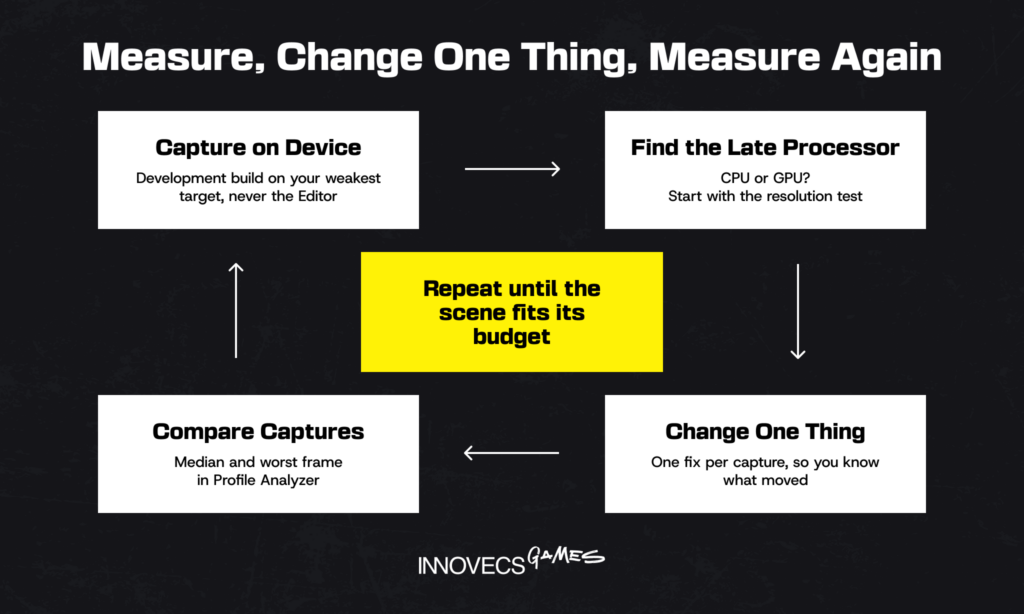
The rule that runs through everything below is short. Measure first, then change one thing, then measure again. When our game engineering services team picks up a performance job, the first thing we ask for isn’t the code. It’s a capture from the weakest device on the target list.
Start With Profiling: Find the Real Bottleneck
Guessing is the most expensive optimization technique there is, because it feels free. An engineer spends three days rewriting a pathfinding system, and the frame rate doesn’t move because the real cost was a shadow cascade. Any Unity performance optimization worth the name starts with a capture: a development build, on the device you’re shipping to. Numbers from the Editor mostly tell you how fast your workstation is. It’s running on desktop hardware, carrying its own overhead and sharing the CPU with the Scene view.
Using the Unity Profiler and Profile Analyzer
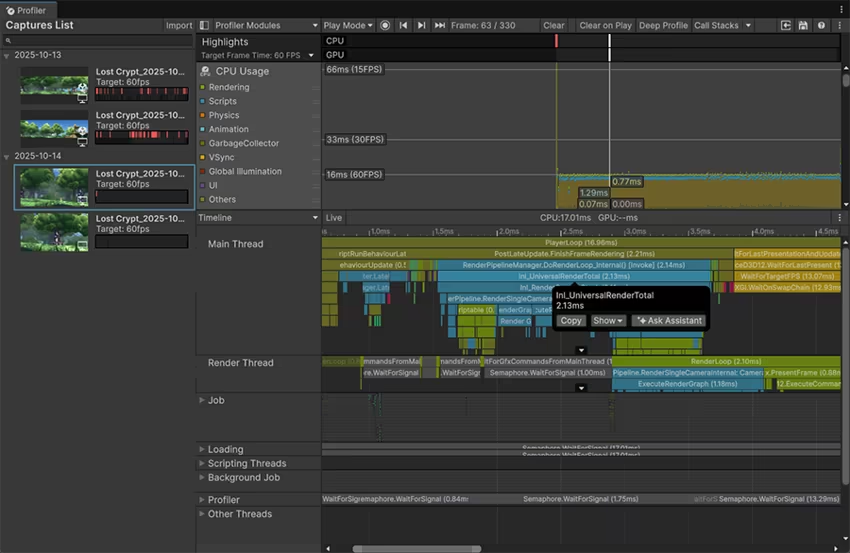
Tick Development Build and Autoconnect Profiler, build, and hook the Unity Profiler up to the phone or console over USB or the network, whichever is less flaky that day. Start in the CPU Usage module’s Timeline view. There you’ll see the main thread, the render thread and the job workers lined up, and it’s usually obvious which one is sitting on the frame. Don’t switch on Deep Profile yet. Because it wraps every managed call, the timings balloon, and we’ve watched a 12 ms frame turn into 40 under it. For a closer look at one system, a custom marker does the job. Here’s one wrapped around the enemy logic:
using Unity.Profiling;
using UnityEngine;

public class EnemyDirector : MonoBehaviour
{
    static readonly ProfilerMarker s_EnemyAI = new ProfilerMarker("Game.EnemyAI");

    void Update()
    {
        using (s_EnemyAI.Auto())
        {
            // decision logic for all active enemies
        }
    }
}
A single frame proves very little, which is what the Profile Analyzer package is for. Feed it a few hundred frames and you get the median and the worst case per marker. It’ll also put two captures next to each other, so “the fix saved 2 ms” stops being a claim and turns into something you can check. Since Unity 6.6 came out on September 1, 2026, the Profiler can also record sessions with screenshots. Matching a spike to what was on screen is now far easier.
Memory Profiler and Frame Debugger
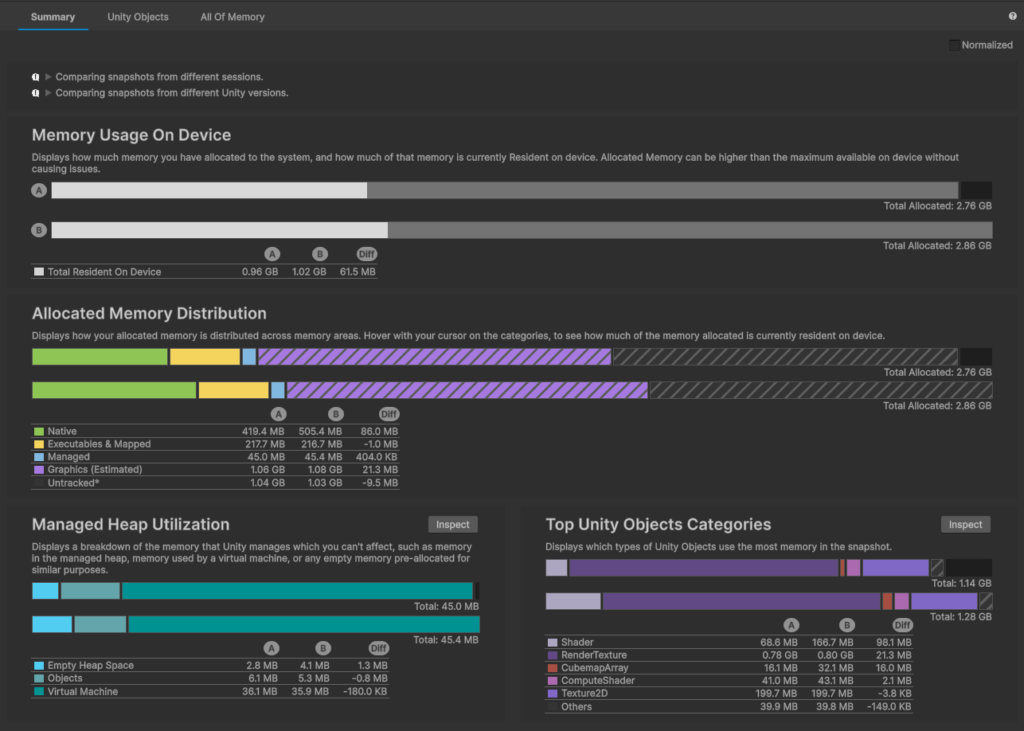
Frame time is half the picture. The Unity Memory Profiler takes snapshots of everything the game holds, native and managed, and lets you compare two of them. Take one in the main menu, play a level, return to the menu and take another. Anything that’s still there and shouldn’t be, such as textures from the level or a list of dead enemies, is a leak. In most of the snapshots we open, textures are the largest single slice, followed by meshes and audio.
The Frame Debugger answers a different question: what did the GPU get asked to draw? It steps through a frame one draw call at a time and, more usefully, tells you why two draws weren’t batched together. A different material, a different shader variant or a change in lighting setup are the usual answers.
One static tool is worth running before you open either of them. Project Auditor became a full part of Unity 6.1. It scans the project for allocations on frequent code paths, flags texture and audio import settings per platform and breaks down build size. It won’t find your bottleneck, but it finds the boring ones before you spend a capture on them.
CPU-Bound vs. GPU-Bound: How to Tell
Before fixing anything, find out which processor is late. Optimizing draw calls on a GPU-bound game, or shaders on a CPU-bound one, is how teams lose a sprint and gain nothing.
| What you see | Probably CPU-bound | Probably GPU-bound |
|---|---|---|
| Main thread in the Timeline | Busy for most of the frame with scripts, physics or animation | Short bursts of work, then waiting, often in Gfx.WaitForRenderThread or a WaitForLastPresent marker |
| Render thread in the Timeline | Busy submitting draws, mostly under Camera.Render | Long stretches in Gfx.WaitForPresentOnGfxThread |
| Lower the render resolution | Frame time barely changes | Frame time drops noticeably |
| Turn off post-processing | Little difference | Clear improvement |
One marker fools people: WaitForTargetFPS on its own means the game is hitting its frame cap with time to spare, not that anything is slow. The resolution test is the quickest one we know, and it’s the one most often skipped. If halving the resolution saves 5 ms, no amount of C# cleanup will help that scene.
Plenty of games are both, depending on where you look. Take a city builder. Sweep the camera over the map in year one and the GPU is struggling; get to year forty, with half a million citizens needing routes, and it’s the CPU’s turn. Profile those worst moments, not the comfortable middle of a session. Which is why “is it CPU or GPU?” has an annoying answer that’s always right: yes, it depends on the scene.
Native GPU Profilers for the Next Layer Down
Unity’s tools tell you the GPU is late and which draws it was busy with. They can’t tell you why a draw is slow on a particular chip. Is the shader limited by arithmetic or by texture fetches? Does a render pass spill out to main memory? Is bandwidth the real ceiling? That layer belongs to the GPU vendors’ own profilers, and on mobile it’s where the last few milliseconds usually hide.
| Tool | Platform | What it shows that Unity doesn’t |
|---|---|---|
| Android GPU Inspector | Android on Adreno, Mali and PowerVR GPUs | System traces with GPU counters and bandwidth, plus single-frame captures of Vulkan and OpenGL ES |
| Arm Performance Studio | Android on Mali GPUs | Streamline counters, Frame Advisor, and the Mali Offline Compiler for per-shader cost |
| Snapdragon Profiler | Android on Adreno GPUs | Per-pass GPU metrics and shader statistics on Qualcomm hardware |
| Xcode Instruments and the Metal debugger | iOS and macOS | GPU timeline, shader cost and memory on Apple silicon |
| RenderDoc | PC, Android | Full capture of one frame, every draw and every resource it touched |
| PIX | Windows and Xbox | GPU timing and captures for DirectX 12 |
Source: documentation from Google, Arm, Qualcomm, Apple, Microsoft and the RenderDoc project.
Don’t try to learn all six. Pick the one that matches the GPU in your weakest target device and learn it properly. Mobile GPU counters take an afternoon to understand, and after that they explain problems the Unity tools can only point at. The interfaces were clearly built by people who love GPUs more than menus, but the counters don’t lie, which is more than you can say for a frame rate counter.
Setting Frame and Memory Budgets per Platform
A target frame rate is a wish. A budget splits it between systems and gives each one an owner, which turns Unity game optimization from a general worry into a list of tickets. Here’s the split we start from for a 60 FPS action game on mid-range mobile:
| System | Share of a 16.6 ms frame |
|---|---|
| Gameplay scripts and AI | 3.0 ms |
| Physics | 1.5 ms |
| Animation | 1.5 ms |
| UI | 1.0 ms |
| Rendering on the CPU (culling, batching, submission) | 3.5 ms |
| Thermal and spike headroom | 6.1 ms |
Source: Innovecs Games delivery data, a starting split we adjust per project, 2023 to 2026.
The last row looks wasteful, and it’s the one people try to spend first. A phone that hits 16 ms when cool won’t hit it twenty minutes later, so the headroom is what keeps the frame rate flat after the device warms up. Memory gets the same treatment: a ceiling for textures, meshes, audio and the managed heap on each platform, checked against a Memory Profiler snapshot every milestone. Budgets nobody checks are decoration.
Reducing CPU and Scripting Overhead
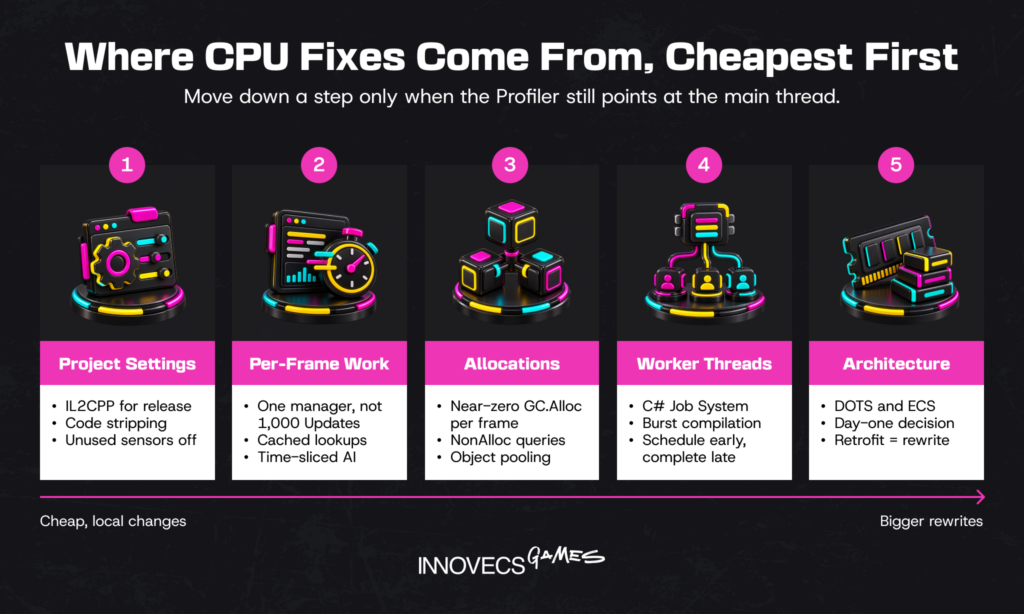
Scripts are the part of the CPU budget you fully control. Once the Profiler points at the main thread, that makes them the right place to start. The fixes below go from project settings, through cheap local changes, to architecture.
Scripting Backend, Code Stripping, and Player Settings
Some settings change how every line of your code runs, so check them before touching any of it. IL2CPP compiles C# to native code ahead of time and runs faster than Mono in most projects, at the price of longer builds. Unity’s own advice is to keep Mono for quick local iteration and use IL2CPP on build machines and release candidates. IL2CPP changes how fast your loops run, though, not what they ask of the heap.
IL2CPP builds also strip unused managed code, and they default to the Minimal stripping level. Medium and High remove more and shrink the build further. They can also break code that finds types by name through reflection, so they need [Preserve] attributes or a link.xml file, plus a full test pass. A few smaller settings are worth a minute each. Turn off the accelerometer if the game doesn’t use it, or lower its sampling rate if it does. Plenty of puzzle games spend their whole lives asking the phone which way is up and never reading the answer. Delete quality levels the game never ships with. And turn off Auto Graphics API on platforms where you don’t need every graphics API, since each one adds shader variants to the build. None of these will show up as a tall bar in the Profiler, which is exactly why they get missed.
Cutting Per-Frame Work in Update Loops
Even an empty Update isn’t free. The engine still hops from native code into managed code to call it, once per script, every frame. Give a thousand enemies a thousand Update methods and you pay that toll a thousand times; one manager walking a list of them pays it once. Then check what each pass is doing. GetComponent, Find, string compares and LINQ love to sneak into per-frame code, and we move them into Awake and cache the result.
Bigger savings come from a ruder question: does this need to run every frame? An enemy doesn’t need to rethink its target sixty times a second. Ten times is plenty, and spreading enemies across frames keeps the cost flat:
// 6 slices, so each enemy thinks on every 6th frame
// (10 Hz at 60 FPS, 5 Hz at 30)
const int kSlices = 6;
readonly List<Enemy> _enemies = new List<Enemy>();
int _slice;

void Update()
{
    for (int i = _slice; i < _enemies.Count; i += kSlices)
        _enemies[i].ThinkAboutTarget();

    _slice = (_slice + 1) % kSlices;
}
Players can’t tell the difference. The Profiler can.
Coroutines are fine for interval work, but yielding new WaitForSeconds(0.1f) creates a new object each time round. We keep one in a field and yield that instead.
Two quieter costs live in most projects. The first is logging. A Debug.Log call left in a release build still builds its string and, depending on your stack trace settings, records where it came from. Our fix is a tiny static Log class whose methods carry [Conditional(“ENABLE_LOGS”)]. In any build without that symbol, the compiler strips the calls out, arguments and all. If you write one, call UnityEngine.Debug.Log by its full name, because System.Diagnostics has a Debug class too and the compiler won’t guess which you meant. The second is hierarchy depth. Moving a parent updates every child under it, and Unity can only process Transforms in parallel across separate root hierarchies. Objects that move every frame shouldn’t sit five levels deep under an empty “Managers” object nobody remembers creating.
Reducing Garbage Collection Spikes
Allocating memory in C# is cheap. Getting it back isn’t. Every new on a reference type ends up on the managed heap. At some point the garbage collector has to stop and sweep it, and that sweep is the hitch players notice. Unity’s incremental collector is switched on by default and smears that work over several frames. Nice for spikes. The garbage is still there, though, and collecting it takes just as long. During gameplay we aim for close to zero bytes a frame, and when a build misses that, the GC.Alloc column in the Profiler points straight at the guilty call.
The usual sources are small and everywhere. String concatenation in a score label, LINQ in gameplay code and lambdas that capture local variables all allocate. So do boxing value types into object and physics queries that return new arrays. Most have an allocation-free version:
// Before: new array, every call
RaycastHit[] FindHitsAllocating(Ray ray) => Physics.RaycastAll(ray, 50f);

// After: one buffer for the whole session
static readonly RaycastHit[] s_Hits = new RaycastHit[16];

int FindHits(Ray ray)
{
    // Results arrive unordered; a full buffer may miss the nearest hits
    return Physics.RaycastNonAlloc(ray, s_Hits, 50f);
}
Make the buffer big enough for the busiest fight in the game, and sort the results yourself when you need the closest hit. UI text has its own version of this trap: change the label when the number changes, not every frame. A score that’s redrawn every frame allocates every frame. One thing won’t rescue you soon: Unity’s move to the CoreCLR runtime. The first Unity 7.0 alpha arrived on October 6, 2026, but Unity’s October update puts performance work in the LTS after 7.0, next year. It also says IL2CPP builds, which covers most mobile and console games, keep the current Boehm garbage collector for the foreseeable future. Plan on fixing allocations by hand.
Object Pooling for Frequently Spawned Objects
Try counting what one boss fight spawns, purely out of morbid curiosity. It’s easy to pass four hundred bullets before you’ve even started on the sparks or the damage numbers floating off the boss’s head. And nearly all of it is gone half a second later, which is the expensive bit: Instantiate bills you in CPU time the moment you call it, and every Destroy is garbage the collector has to come back for. Pooling gets around both. With Unity object pooling you keep a crate of switched-off objects, lend them out and take them back, and since 2021 Unity has shipped a pool of its own, so you don’t need to write one. In a spawner’s Awake, it looks like this:
// using UnityEngine.Pool;
_pool = new ObjectPool<Projectile>(
    () => Instantiate(_prefab),                               // make a new one
    p => p.gameObject.SetActive(true),                        // lend it out
    p => { p.ResetState(); p.gameObject.SetActive(false); }, // take it back
    p => Destroy(p.gameObject),                               // pool's full, bin it
    collectionCheck: true, defaultCapacity: 64, maxSize: 256);
We see two parameters go wrong a lot. Leave out the destroy callback (actionOnDestroy) and anything released into an already full pool just sits in the scene, switched off, forever. As for defaultCapacity, despite the name it doesn’t create anything up front. It just reserves room. If you want the pool warm, get and release a batch during a loading screen, when nobody’s watching. Pools have one honest downside, which is that they hide bugs. A bullet that keeps its previous life’s velocity, or a trail still holding old points, gets filed as a gameplay glitch, so test ResetState as hard as you test the spawn code.
Scaling Up With the Job System, Burst, and DOTS
At some point the main thread is as lean as it’s going to get, while the other cores sit there doing very little. That’s what the C# Job System is for: it hands chunks of work to worker threads. Burst then compiles those jobs down to vectorized native code, and since Unity 6.6 it’s part of the engine itself, so there’s no package to add.
using Unity.Burst;
using Unity.Collections;
using Unity.Jobs;
using Unity.Mathematics;
using UnityEngine;

[BurstCompile]
struct MoveJob : IJobParallelFor
{
    public NativeArray<float3> Positions;
    [ReadOnly] public NativeArray<float3> Velocities;
    public float Dt;

    public void Execute(int i) => Positions[i] += Velocities[i] * Dt;
}

// In a MonoBehaviour: schedule in batches of 64, complete when the results are needed
var job = new MoveJob { Positions = positions, Velocities = velocities, Dt = Time.deltaTime };
JobHandle handle = job.Schedule(positions.Length, 64);
// ...other main-thread work...
handle.Complete();
Schedule early, complete late. Call Complete on the line right after Schedule and the work still gets split across cores, but your main thread just stands there waiting for it. (The float3 type comes from the Unity Mathematics package, which Burst is built to vectorize.)
DOTS, with its Entity Component System, goes further and changes how the whole game stores and processes data. Stunlock Studios built V Rising on it, with 1,600 ECS systems handling more than 160,000 interactive objects, and the game has sold over five million copies. Our view, for what it’s worth: Jobs and Burst for hot loops are worth it on almost any project, while full ECS pays off when it’s in the design from the start. Retrofitting it into a finished MonoBehaviour game is a rewrite with extra steps.
Cutting Rendering and GPU Costs
Scripts are only part of the CPU’s frame. Rendering eats into it too, and into the GPU’s as well: the CPU culls objects, sorts them and submits draw calls, and the GPU then shades every pixel those calls produce. The techniques below split roughly along that line, and each one costs something somewhere else.
| Technique | When to use it | What it typically saves | What it costs |
|---|---|---|---|
| SRP Batcher | Any URP or HDRP project; keep shader variants few | CPU time per draw call, often several ms in dense scenes | Needs compatible shaders |
| GPU instancing | Many copies of one mesh and material, like trees or crowds | Hundreds of draws become one | In URP and HDRP, custom shaders need the SRP Batcher off |
| Static batching | Static level geometry sharing materials | Draw calls for scenery | Extra memory for the combined meshes |
| GPU Resident Drawer | Large Unity 6 scenes with many repeated meshes | CPU time spent on draw calls | Forward+ or Deferred+ and compute shaders; not on OpenGL ES or WebGL |
| LOD groups | Any 3D object seen at different distances | Vertices and GPU time on distant objects | Artist time and extra memory per LOD |
| Occlusion culling | Interiors, cities and anything with walls | Draws for objects hidden behind others | Bake time, or GPU setup cost if little is hidden |
| Baked lighting | Static scenes, mobile, VR | Most real-time lighting and shadow cost | Lightmap memory, no dynamic changes |
| Upscaling (STP, FSR, DLSS) | GPU-bound games on PC, console, high-end mobile | Shading cost of rendering at full resolution | Artifacts; STP needs compute, DLSS is HDRP-only; no help for CPU limits |
Source: Unity documentation linked in this section, with typical savings from Innovecs Games delivery data, projects 2023 to 2026.
Note what’s missing from that table. Dynamic batching is now obsolete as of Unity 6.6, so a tutorial that still tells you to rely on it is older than it looks.
Reducing Draw Calls With Batching and GPU Instancing
The SRP Batcher is the first thing to check in any URP or HDRP project, and the Unity documentation is precise about what it does. It doesn’t reduce the number of draw calls. It reduces the CPU work between them by keeping material data on the GPU and skipping state changes when nothing has changed. Many materials are fine, as long as they share a shader and use as few variants of it as possible. Stunlock credits the SRP Batcher with removing several milliseconds of frame lag in V Rising. On a 16.6 ms budget, that’s the difference between shipping and not.
GPU instancing is for the opposite case: hundreds of identical meshes, like grass, rocks or a stadium crowd. The catch is documented and routinely missed. In URP and HDRP, instancing works with custom shaders only if the SRP Batcher is off, so teams often think they’re instancing when the Frame Debugger shows they aren’t. On Unity 6, the GPU Resident Drawer does much of this for you. It draws eligible GameObjects through the BatchRendererGroup API with instancing, which frees CPU time in scenes full of repeated meshes. It needs Forward+ or Deferred+ and compute shaders, so OpenGL ES devices fall back to the normal path.
Level of Detail and Occlusion Culling
LOD groups swap a detailed mesh for a simpler one as it gets smaller on screen, and they’re the cheapest big GPU win in most 3D games. Cities: Skylines II is the cautionary case. Colossal Order said before the October 2023 launch that it hadn’t hit its performance target, and three days after release it confirmed that its citizens shipped without LOD models, which affected performance. The internet had decided the problem was the characters’ highly detailed teeth. The teeth weren’t the cause, though Iceflake Studios, which later took over development, removed them anyway. The missing LODs were the boring true answer. Boring true answers are most of this job.

Unity occlusion culling stops the engine from drawing objects hidden behind walls and buildings. The classic version is baked ahead of time and works best for static interiors and dense cities. Unity 6 adds GPU occlusion culling, which works with the GPU Resident Drawer and uses depth from the current and previous frames. It’s conservative by design and adds setup work of its own, so in an open field with little to hide it can make rendering slower. Test it per scene before you leave it on. For distance-based savings, per-layer cull distances let small props disappear long before mountains do.
Shaders, Lighting, and Overdraw
Shader variants multiply quietly. Every keyword doubles the possible combinations, the way every kitchen gadget seems harmless until the drawer stops closing. Build time grows, memory grows, and so does the stutter players feel when a variant compiles mid-game. Unity’s own numbers make the point: converting shader keywords to dynamic branches in its Survival Kids sample cut a clean build from about 1 hour 46 minutes to about 32 minutes. Strip the variants you don’t ship, and keep material setups consistent so the SRP Batcher can do its job.
Lighting is where mobile and console budgets split hardest. Baked lightmaps and light probes cost memory but almost nothing per frame, while every real-time shadow-casting light renders the scene again from its own point of view. On mobile we’d plan for one real-time directional shadow at most, with short shadow distance and few cascades. Overdraw is the other silent GPU cost: stacked transparent particles, full-screen UI panels and fog layers shade the same pixel again and again. The Rendering Debugger’s overdraw view makes that visible in seconds. Our game technical art team spends most of its time here. The fix tends to be in how the asset was built, not in the code that draws it.
Choosing Between URP and HDRP
This decision changed in 2026, and older advice hasn’t caught up. Unity’s render pipeline strategy now puts URP at the center for all genres and platforms. HDRP is in maintenance mode, with no new features planned, though it gained official Switch 2 support in Unity 6.5. The Built-in Render Pipeline began deprecation in 6.5, and Unity says plainly that it doesn’t recommend it for new titles.
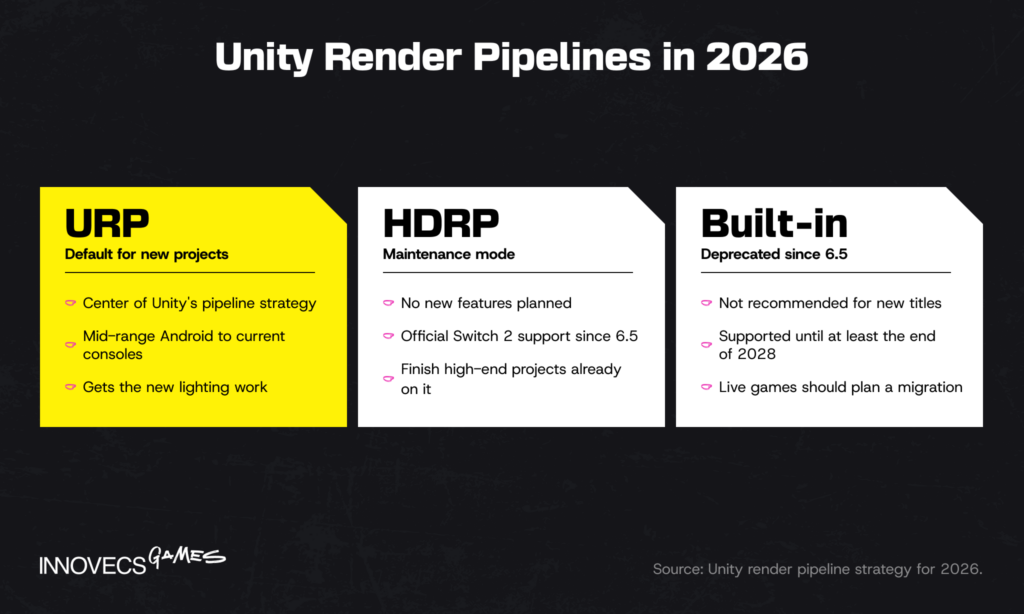
For a new project, that settles it: start with URP. It runs on everything from mid-range Android to current consoles, gets the new lighting work, and has the best tooling for scaling quality across devices. HDRP still makes sense for an existing high-end PC or console project that depends on its feature set. Our read, for an HDRP project already in production: finish it on HDRP. Switching pipelines mid-production to follow a roadmap slide costs more milestones than the frozen feature list ever will. Live games on Built-in are a different story and should plan a migration now. Unity guarantees support until at least the end of 2028 but hasn’t set a removal date. If you’re still deciding on an engine at all, our Unity vs Unreal comparison covers how each handles high-end rendering.
Memory, Assets, and Load Times
On phones, memory problems don’t look like memory problems. When a game uses too much, iOS or Android simply kills it, and to the player that’s a crash. Load times sit on the same axis: the more a scene asks for up front, the longer the spinner. Most of both is decided at import time, long before a line of gameplay code runs.
Texture Compression, Atlases, and Mipmaps
Run the numbers on one texture. A 2048 × 2048 image stored uncompressed as RGBA32 takes 16 MB, or about 21 MB with mipmaps. The same image in ASTC 6×6, the format we’d default to on modern Android and iOS, takes under 2 MB, or about 2.4 MB with mipmaps. That’s roughly a 9× saving from a dropdown, and it’s the most common fix in the audits we run. If we could change one thing about how teams import art, it wouldn’t be a setting. It would be making someone look at the import settings at all.
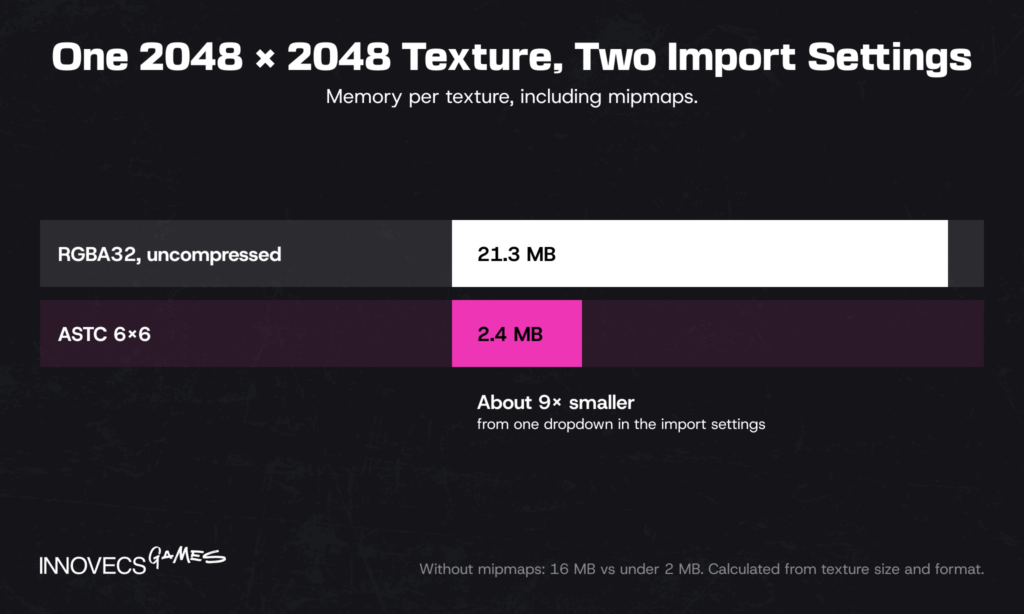
Three settings decide most texture memory. Set a maximum size per platform, because a 4K texture on a prop the player sees at 200 pixels is waste. Turn mipmaps on for anything in the 3D world, since they also make distant surfaces cheaper to sample. Turn them off for UI, which never needs them. Pack small sprites and UI elements into atlases to save memory and let the renderer batch them. For a deeper look at the art side of this, see our guide to optimizing art rendering for mobile games.
Mesh, Animation, and Audio Import Settings
Meshes hide one expensive checkbox. Read/Write Enabled keeps a CPU-side copy of the mesh in memory alongside the GPU one, so leave it off unless a script really modifies the mesh at runtime. It’s the checkbox equivalent of keeping a photocopy of every receipt just in case. Polygon count matters most on characters, which are skinned every frame, so the LOD chain should start there. Animation clips should use keyframe reduction or Optimal compression, with scale curves removed when nothing ever scales.
Audio is where load times go to die. Short sound effects work best as Decompress on Load. Longer ambient loops can stay Compressed in Memory, and music should Stream from disk so it never sits fully in RAM. Forcing mono on sounds that don’t need stereo halves their size for free. Project Auditor lists all of these import settings per platform. That beats opening four hundred assets by hand.
Asset Budgets Artists Can See Before Export
In art-heavy games, most performance debt isn’t written in code. It shows up one asset at a time. A crate gets a 4K texture. One hero mesh ends up with five times the triangles of the rest of the cast. Somebody builds a particle effect on a workstation that has never met a phone. Nobody in that list did anything wrong; the artist simply had no number to aim for, and the visible work wins every planning meeting until a capture months later shows the bill.
So give artists budgets per asset class before they export, in units they already think in, and let the pipeline enforce them.
| Asset class | Budget the artist works to | How it’s checked |
|---|---|---|
| Hero characters | Triangles per LOD, material count, maximum texture size | Import script, then review against the budget sheet |
| Environment props | Triangle cap by typical screen size, atlased textures only | Import script |
| VFX | Maximum particles, overdraw layers, texture size | Overdraw view in the Rendering Debugger |
| UI | Atlas membership, no mipmaps, compression per platform | Import script |
Source: our own projects, 2023 to 2026 (Innovecs Games delivery data).
If we had to keep only one check from that table, it’d be the import script. It goes on enforcing the budget long after the meeting where it was agreed has faded from everyone’s memory, and Unity’s own project configuration guide recommends exactly this, an AssetPostprocessor that sets or checks import settings by itself. A texture with the wrong size or format then gets fixed or flagged as it lands, instead of turning up in an audit six months later.
Cutting for performance can also change the look of a game without anyone deciding that it should, so we grab reference screenshots of the heaviest scenes from fixed camera spots before anything visible is cut, and the art director signs off each downgrade by comparing against them. That turns “the game looks worse now” into a decision somebody signed.
Addressables and Asset Streaming
Budgets decide what each asset costs. Unity Addressables decide when it’s in memory at all: a game loads assets when it needs them and releases them when it doesn’t, so memory follows the player instead of the whole build. They also let you move content off the install and onto a server, so the download players see in the store gets smaller. The catch is discipline. Every load needs a matching release, and an asset that’s loaded twice and released once stays in memory for good. Badly planned groups also duplicate shared assets across bundles. The Analyze tool will flag that, if somebody runs it.
Unity 6.6 adds Content Directories, which let a game load only the local assets it needs instead of whole bundles. On Windows and Xbox Series X|S they can use DirectStorage, and Unity says that speeds up reads by up to 40%. Whatever the system, measure load times on the slowest storage you ship to. A load that takes four seconds on a desktop SSD can take fifteen on a budget phone.
Platform-Specific Unity Performance Optimization
The same game rarely has the same bottleneck everywhere. A scene that’s GPU-bound on a phone can be CPU-bound on a console, and a build that runs fine on desktop can be killed for memory in a browser tab. Here’s where each platform tends to break first.
| Platform | What usually breaks first | Check first |
|---|---|---|
| Mid-range Android | Heat, then frame rate after 10 to 20 minutes | Target frame rate, ASTC, resolution scale, Adaptive Performance |
| iOS | Memory limits, then heat | Texture sizes, Addressables release, Metal frame capture |
| PC | Shader compilation stutter, wide hardware spread | Shader warm-up, quality presets, upscaler options |
| Console | Memory budget and certification | Per-platform budgets, streaming, sustained frame time |
| WebGL / WebGPU | Download size and browser memory | Progressive loading, texture sizes, graphics API fallback |
| XR | Hard frame rate floor, two views per frame | Single-pass rendering, foveation, SpaceWarp |
Source: Innovecs Games delivery data, projects 2023 to 2026.
Notice how little of that table is about raw speed. Heat, memory, download size and platform rules come up more often than frame rate does, which is why a fast PC build tells you so little about the others.
Mobile: Thermal Throttling, Battery, and Adaptive Performance
On phones, peak frame rate is easy and sustained frame rate is the job. It’s the only platform where your game’s performance depends on whether the player is sitting in the sun. Any Unity mobile performance optimization plan should include 20 to 30 minute play sessions on the weakest supported device, with the frame rate and device temperature logged the whole time. A five-minute test will pass a game that falls apart in minute twelve.
Unity’s Adaptive Performance package reads the device’s thermal state and lets the game lower quality before the system throttles it hard. Kakao Games used it on Ares: Rise of Guardians, and Google reported that frame rate stability rose from 75% to 96%, with throttling starting around minute 22 instead of minute 16. Battery drain now has its own Android vitals metric as well, excessive wake locks. Play’s help page still lists it as beta with no effect on discoverability, but it’s worth watching now that Google tracks it.
Quality Tiers for Low-, Mid- and High-End Devices
Ship one quality setting to every phone and either the flagship looks dated or the budget phone cooks itself. Some games manage both at once. Most mobile teams we work with ship three or four tiers. The tier is picked on first launch from a device list built from your own analytics. Devices that aren’t on the list fall back to a rule based on SystemInfo values, such as system memory, graphics memory and GPU name, and a short benchmark scene settles the rest. Each tier maps to a Unity Quality level.
| Setting | Low tier | Mid tier | High tier |
|---|---|---|---|
| Target frame rate | 30 FPS | 30 or 60 FPS | 60 FPS |
| 3D render scale | 0.65 to 0.75 | 0.8 to 0.9 | 1.0 |
| Shadows | Off, or simple blob shadows | One directional light, short distance | One directional light, longer distance |
| Texture mipmap limit | Top mip dropped | Full resolution, streamed | Full resolution |
| Post-processing | Off | Color grading only | Bloom and color grading |
| Particle cap | About 50% | About 75% | 100% |
Source: our starting point, tuned on every project (Innovecs Games delivery data, 2023 to 2026).
We spend most test time on that middle column, because a bad guess there is the one that shows up in reviews. Players should be able to override their tier in settings, too, and we keep a remote config switch handy for bumping a phone model down a tier without pushing an update.
Get the mid tier into budget before a soft launch, not after it. Soft-launch retention and CPI are only as good as the build behind them, and if the game stutters on the phones most testers own, you’re measuring its frame rate instead of its design. Split soft-launch KPIs by device tier as well, so a weak low tier doesn’t get mistaken for a weak game.
Frame Pacing and the Shaky 60 Problem
Producers are often surprised the first time they see it. The counter says 60, the game feels worse than the old 30 FPS build, and nobody believes the counter is lying. It isn’t, exactly. If one frame takes 16 ms, the next 33 and the one after that almost nothing, the average still comes out near 60 while the motion on screen hitches every second or so. That’s frame pacing. We read frame-time graphs for exactly this reason and pretty much ignore FPS averages, and players, who’ve never heard the term, will happily call the result “jittery” in a review. On Android, Unity’s Optimized Frame Pacing setting evens out the gaps between frames, so we leave it switched on unless testing gives us a reason to turn it off.
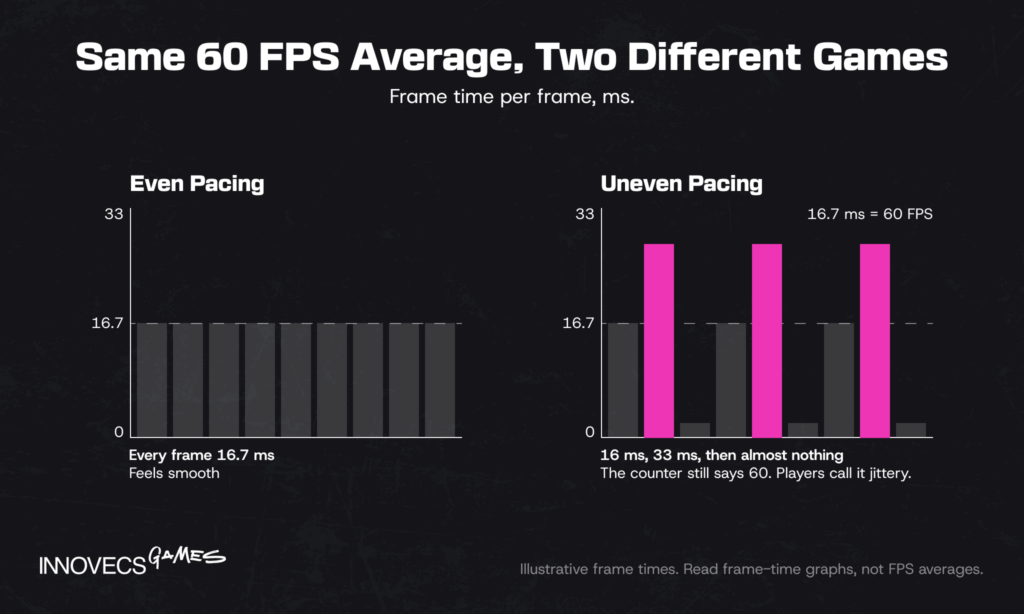
Then there’s picking the target. Our rule on a 60 Hz phone: lock to 30, one frame every second refresh, before you chase a 60 that wobbles. On 90 and 120 Hz screens it’s the same idea with more options. Set Application.targetFrameRate to something the refresh rate divides into, so 30 or 60 on a 120 Hz panel, and frames line up with refreshes.
Third-Party SDKs and Cold Start
For mobile publishers, part of the frame budget belongs to code nobody on the team wrote. Ads, analytics, attribution and crash reporting SDKs all initialize at launch, often on the main thread, and Android vitals counts a cold start of 5 seconds or longer as excessive. Google’s own list of common Unity ANRs adds two more traps. Ad SDKs that open WebView outside Unity’s activity can block the main thread. And when OnApplicationPause handlers run slowly, an ANR follows once pausing takes more than 5 seconds.
The fixes are unglamorous. Initialize SDKs one after another once the first interactive screen is up, and defer anything that isn’t needed for the first session minute. Profile startup itself with a development build, starting from launch, not from the main menu. Keep file and network work out of OnApplicationPause. And check the Google Play SDK Index before keeping an SDK that keeps turning up in ANR stack traces. Our view: every SDK should earn its milliseconds, so ask the UA team which decision each one’s data drives.
PC and Console
Off mobile, the problems change shape. PC’s signature problem is stutter, not low frame rate. When a shader variant compiles the first time it’s needed, the frame stalls, and players feel it every time a new effect appears. Unity 6.1’s Graphics State Collection API records the graphics states a game uses so they can be prepared ahead of time, with an automatic fallback to the older warm-up path. Then there’s the hardware spread. PC players collectively own every graphics card made in the last decade, and the one you didn’t test on will be in a review by Friday. Quality presets, an upscaler option and a resolution scale slider let them fix what you couldn’t test.
Consoles reward the opposite discipline. The hardware is fixed, so a budget can be exact and certification checks that the game respects it. Moon Studios’ work on Ori and the Will of the Wisps shows what that takes in Unity. When the team first ran the Switch version, even after the post-launch Xbox optimization passes, it managed 24 FPS. Moon Studios rethought how its rendering pipeline worked and optimized simulation, streaming and memory management. Tools scored each scene element’s visual impact, and the art team cut the ones that contributed least. It shipped at 60. Console work also needs dev kits and platform approval before any of this starts. If the platform is new to you, our guides on how to port games and game porting cost cover the process and the budget. If you’re planning several platforms at once, our article on cross-platform game development covers how to build for that from day one.

WebGL and XR
Web builds got a real upgrade this year. WebGPU came out of experimental status in Unity 6.6, and it unlocks the compute-based features WebGL never had, including the GPU Resident Drawer, GPU occlusion culling, STP upscaling and VFX Graph. It’s opt-in, it needs HTTPS, and you should keep WebGL 2 as the fallback for browsers that don’t support it. The limits that matter most haven’t changed, though: download size, browser memory and the few seconds before a player closes the tab. Per-scene progressive loading in 6.6 helps with the first of those. Allocations hurt more here, too, since the web platform is the one Unity target without incremental garbage collection.
XR has the least forgiving budget of any platform, because a dropped frame in a headset feels physical. On a phone, a bad frame costs you a review. In a headset, it costs you the player, who takes it off. Meta requires Quest apps to render at 60 FPS or more, with interactive apps running at 72 Hz or higher. Single-pass instanced rendering draws both eyes in one pass, and foveated rendering saves shading at the edges of the view. Application SpaceWarp lets parts of an app render at half rate, provided it supplies motion vectors. Unity 6.6 also applies Meta Quest GPU optimizations automatically and brings Adaptive Performance to OpenXR.
Physics, UI, and Animation Quick Wins
Whatever the platform, physics, UI and animation turn up in almost every capture, and rarely at the top. A millisecond here, a millisecond there. Add them up on a phone and you can lose a quarter of the frame without any single line looking guilty.
Physics Timestep, Colliders, and Raycasts
Unity’s default fixed timestep is 0.02 seconds, so physics runs 50 times per second regardless of frame rate. Almost nobody opens the Time settings out of curiosity, which is how that default ends up in so many shipped games. In a 30 FPS game that means physics often steps twice in one frame. Plenty of games don’t need 50 Hz physics at all, and for those a bigger timestep is about the cheapest saving in this whole article. The setting next to it, Maximum Allowed Timestep, sits at a third of a second by default and limits how much catch-up physics one slow frame can kick off. Turn it down and you give up a little simulation accuracy in exchange for hitches that don’t snowball. Use primitive colliders wherever a mesh collider isn’t essential, trim the layer collision matrix so layers that never meet never get checked, and use the NonAlloc raycasts from the garbage collection section.
How objects move matters too. Setting transform.position on a Rigidbody teleports it: Unity has to sync the change into the physics scene, and the body skips any collisions along the way. Move kinematic bodies with Rigidbody.MovePosition and dynamic ones with forces or velocity, in FixedUpdate. Interpolation smooths motion between physics steps, but it costs something on every object that has it, so turn it on only for objects the camera follows closely.
UI Canvas Rebuilds
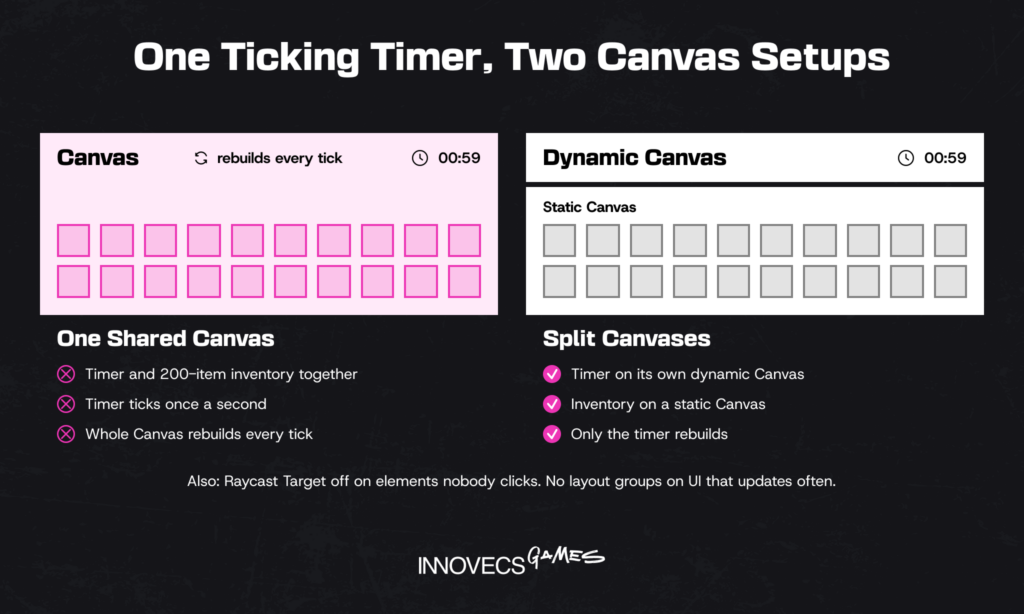
When anything on a Canvas changes, Unity rebuilds the geometry for the whole Canvas. A ticking timer on the same Canvas as a 200-element inventory means the inventory rebuilds every second. “Why does the UI cost 3 ms?” is a conversation we’ve had many times, and it nearly always ends at a clock. Split static and dynamic elements onto separate Canvases, turn off Raycast Target on images and text nobody clicks, and avoid layout groups on anything that updates often. If you’re on UI Toolkit, Unity 6.6 added dedicated Profiler modules that report layout time and the reasons rendering batches break.
Animator and Particle System Costs
An Animator keeps evaluating even when its character is off-screen, unless you tell it not to, which is the game-dev version of leaving the lights on in an empty house. Set Culling Mode to cull when invisible for anything the player can’t see, and replace Animators on simple UI elements with tweens. Characters with a high bone count should get fewer bones on lower LODs. Particle systems cost on both processors: simulation on the CPU and overdraw on the GPU. Cap Max Particles, prefer fewer large particles over many small transparent ones, and keep systems in a mode that lets Unity skip them when they’re off-screen. On hardware with compute support, VFX Graph moves heavy effects onto the GPU entirely.
A Worked Example: One Scene From First Capture to Budget
Here’s how those sections combine on a single scene. It’s a composite of the passes we run, with typical numbers, not one client’s project. The scene is a wave-based arena on a mid-range Android phone, with a 60 FPS target and a 16.6 ms budget.
The first capture showed a median frame of 24.8 ms and a worst frame of 41 ms. In the Timeline, the main thread finished its work in about 12.5 ms and then waited for the GPU. The resolution test confirmed it. At 70% render scale the median dropped to 17 ms, so the GPU came first, and the CPU fixes were scheduled for the worst frames.
| Step | Change | Median frame | Worst frame |
|---|---|---|---|
| Baseline | First capture, development build on device | 24.8 ms | 41 ms |
| 1 | 3D render scale 1.0 to 0.8, UI kept at native resolution | 19.6 ms | 37 ms |
| 2 | Hit-effect particles capped, quads made smaller to cut overdraw | 17.4 ms | 35 ms |
| 3 | Real-time point-light shadows replaced with baked lighting | 15.2 ms | 33 ms |
| 4 | Projectiles and damage numbers pooled, score label updated only on change | 15.2 ms | 24 ms |
| 5 | HUD moved to its own Canvas | 15.1 ms | 21 ms |
| 6 | Unused layer pairs removed from the collision matrix | 15.0 ms | 19.5 ms |
Source: Innovecs Games delivery data, an illustrative composite of performance passes run 2023 to 2026.
Two things in that table surprise people. Steps 4 to 6 barely moved the median, because the GPU still set the pace, yet they cut the worst frame from 33 ms to under 20, and the worst frames are what players feel. And a 15.0 ms median leaves only 1.6 ms of headroom, far less than the budget table asked for. The 30-minute soak test showed why that matters: the phone started throttling around minute 18. Adaptive Performance, set to step render scale down to 0.7 under thermal pressure, kept the game at 60 FPS through the end of the session. In total, the pass took one engineer and one technical artist about two weeks. If there’s one lesson in it, it’s the order: the GPU went first because the capture said so, not because rendering felt like the problem. Gut feeling would have started with the enemy behavior scripts, since they were the newest code and therefore the most suspicious.
Common Unity Optimization Mistakes
Most of the time lost on performance work isn’t lost on hard problems. It goes to a handful of habits that look reasonable at the time.
- Trusting Editor numbers. They measure your workstation, not the game on a phone.
- Optimizing the average frame. Players feel the worst frames. Track medians and 99th percentiles together.
- Fixing the wrong processor. C# cleanup in a GPU-bound scene changes nothing. Run the resolution test first.
- Changing five things between captures. When the frame time moves, nobody knows which change did it, or which one made something else worse.
- Testing for five minutes on a cool phone. The 30-minute soak test exists for a reason.
- Believing Deep Profile timings. Deep Profile is for finding call paths, not for measuring them.
- Following advice written for older Unity versions. Dynamic batching and the Built-in pipeline are on their way out, and many popular tutorials still lean on both.
- Testing only on the team’s own phones. Studio phones tend to be newer than the ones players own.
- Leaving performance to the final month. A budget checked every milestone finds problems while there’s still room to fix them.
A Pre-Launch Performance Checklist
Run this list on a release candidate, not on last month’s build. These are the Unity optimization tips we’d check twice before any launch or major update, and every item is something a QA lead can verify.
- Weakest device profiled. A development build on the worst phone or console you support, never the Editor.
- Three heaviest scenes inside the frame budget? Write down the median and the worst frame for each.
- Thirty minutes on a phone without the frame rate sagging. If it drops at minute 18, you’ve found your next ticket.
- Memory: under budget on every platform, and no growth after going back to the main menu three times.
- Garbage per frame close to zero in gameplay, and no collection spikes in the capture.
- SRP Batcher actually on (check the Frame Debugger), draw calls under target, every texture compressed.
- Cold start timed on the slowest device. Android counts 5 seconds or more as excessive.
- Somebody actually set targetFrameRate on mobile and glanced at the frame-time graph for pacing.
- Install it clean and play the first ten minutes. Any hitch when a new effect appears means shader warm-up isn’t working.
- Your top-selling phones each have a tier assigned, not whatever the fallback rule guessed.
- The build pipeline runs performance tests and fails the build on a regression.
A performance pass works best when it shares a test plan with the rest of QA. Our guide to game testing covers how those passes fit together before release.
Live games don’t get to tick this list once. Every event, season and skin drop adds particles, materials and textures that weren’t in the launch budget, usually about a week before it’s due. What works for us is a separate asset budget for event content, the heaviest new scene run through the checklist before every drop, and performance tests in the pipeline that are allowed to fail the build. Without that, a frame rate that was fine at launch erodes a little per update until, a few seasons in, it’s gone, and nobody can say which update took it.
When to Bring In Outside Performance Help
Performance work competes with features for the same engineers, and features usually win until the frame rate becomes a launch risk. Then the question is whether the team can close the gap in time, or whether it needs more people who’ve done this before.
Warning Signs Your Team Is Stretched
The signs tend to show up in planning before they show up in a capture.
- The frame rate target has been missed at two milestones in a row.
- Profiler captures get taken, but nobody has time to read them.
- Performance tickets are older than the features they block.
- The engineers who know the renderer are also the ones shipping the next feature.
- Store warnings, a failed certification or a Quest review flag have arrived.
- Soft-launch retention drops on low-end devices, and nobody can say why.
Any one of these is normal. Three at once means the team needs either more time or more people, and launch dates rarely offer the first.
What a Performance Audit Includes
An audit is the cheapest way to turn “the game feels slow” into a plan with numbers. Ours usually takes two to three weeks and covers:
- Captures from real phones and consoles. Profiler and Memory Profiler runs on your weakest device and on the ones most of your players own.
- Where the time actually goes. Is it the CPU? The GPU? Memory? Loading? We go scene by scene until we can point at the actual thing, say, one particle system or one script.
- A ranked fix list. Each fix with an estimate and an expected saving in milliseconds or megabytes.
- Quick wins. Usually import settings and project config. Some land the same week.
- Budgets. A number for every platform, frames and megabytes. Otherwise the next content drop eats the gains and nobody notices for a month.
Based on audits we ran between 2023 and 2026.
The ranked list is the part teams keep. A fix that saves 4 ms in your worst scene should come before ten that save 0.2 ms each, even if those ten are easier.
It’s also what gets the money signed off. Your CFO doesn’t read flame graphs. They do read ANR numbers, Android vitals, retention on budget phones, a failed cert submission, and those one-star reviews that just say “laggy” or “my phone got hot.” Hang each fix on one of those. “This saves 3 ms” gets a polite nod. “This is why players on cheap Androids quit in week one” gets a budget. And a fixed-price audit means nobody has to bet big before they’ve seen the list.
In-House Fixes vs. an External Partner
So you’ve got a list. Now who does the work? Funny enough, the answer depends more on your team than on your game.
| Question | Fix in-house if | Bring in a partner if |
|---|---|---|
| Who knows the renderer and memory systems? | Two or more people with time to spare | One person, or nobody, and they’re booked |
| How far off is launch? | Months, with room for another milestone | Weeks, or the date is fixed by a publisher |
| What’s the gap? | A few ms in known places | Several systems, or causes nobody has found |
| Is the game live? | Updates leave room for perf work | The live calendar eats every sprint |
| Will you need this skill again? | Yes, on every project | Once, for this launch or port |
Source: what we’ve seen on client projects, 2023 to 2026.
Here’s the catch with bringing people in, and we’d rather say it ourselves. Outsiders fix the frame rate, wave goodbye, and you’re left maintaining code nobody on your team wrote. So insist on written budgets and a proper handover. Need someone permanent? Our guide on how to hire Unity developers walks through what to look for. Just need to get one launch out the door? Scoped game development outsourcing gets you there sooner.
Also, “outsourced” doesn’t mean “free for your leads.” Expect your tech lead to spend a few hours a week with us, mostly explaining the weird old system only your team understands, checking changes to shared code and saying yes or no to trade-offs players will notice. Got a lot of juniors? Have them pair with our engineers on the actual fixes. That’s how the why sticks around after we’ve gone. Two more things we’d push for. Define done in numbers on a named phone, something like “arena scene, mid-tier test device, median under 16.6 ms, worst frame under 25 ms.” And once a week, look at a real capture together. Status slides lie; captures mostly don’t.
Struggling to Hit Your Frame Budget? Let’s Talk
Got a dev build and a phone that keeps you up at night? Send both our way. We’ll dig into the worst scenes and show you where the milliseconds disappear. No strings: if you’d rather fix it yourselves after that, fine by us.
How AI Is Changing Unity Optimization
AI has sped up the boring half of game optimization. The other half, deciding what your game can actually afford to keep, is still a person arguing with another person, and we don’t see that changing soon.
AI-assisted profiler analysis. Unity’s AI Assistant can now take a selected Profiler sample as context and explain it or point you somewhere useful. If you’re a junior opening the Timeline view for the first time and feeling lost, honestly, that helps. But it only sees the capture you hand it. Profiled the wrong scene on your shiny dev phone? It’ll cheerfully analyze that.
AI coding assistants for hot paths. Ripping LINQ out of gameplay code, cutting allocations from a loop, moving a system onto jobs: today’s assistants do this fine. The trouble is the code always looks right. Whether it’s faster is another question, and we’ve seen “cleaner” refactors lose a millisecond. So it goes back on the device and through the Profiler, same as human code.
Automated performance testing in CI. Our favorite, if we’re picking. Unity made its Performance Testing package part of the core engine in 6.6. That means a nightly build can play through scripted scenes on actual devices and go red when frame time or memory goes over. AI is handy for writing those tests and keeping them alive. The limits themselves? Those are yours. Our take: AI shines at the chores engineers keep pushing to next sprint, and is pretty useless at the fights, like which effect gets cut.
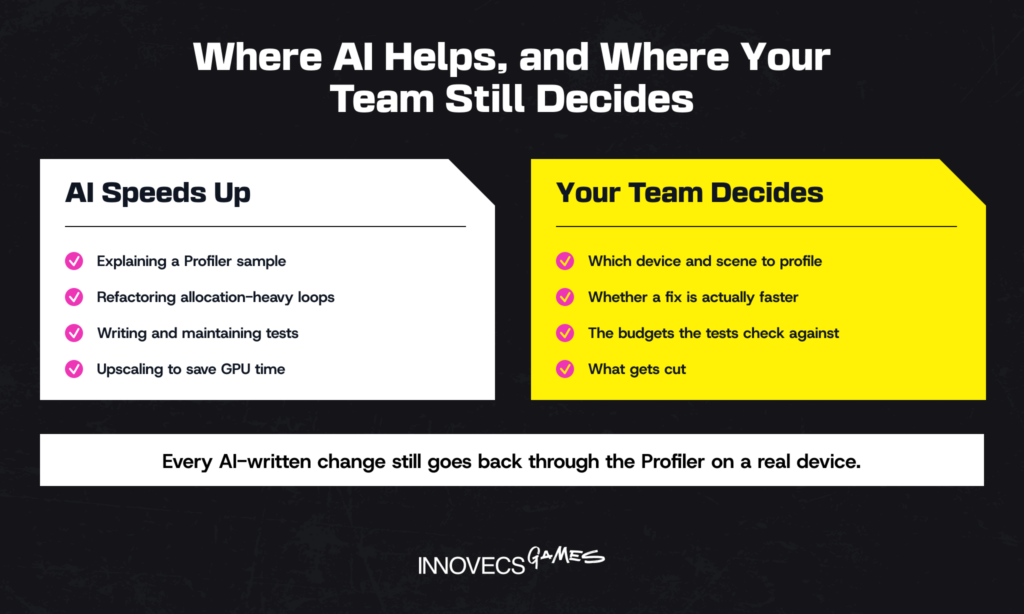
ML upscaling and frame generation. Unity 6 ships its own Spatial-Temporal Post-processing (STP) upscaler, URP adds FSR 1, and HDRP adds FSR 2 and DLSS 4. Rendering fewer pixels and reconstructing the rest is a legitimate GPU saving. Frame generation is different: it adds latency, and Nixxes, Sony’s PC porting studio, recommends a base of about 60 FPS before turning it on. Neither technique touches a CPU-bound frame. A game that stutters because of garbage collection will stutter with generated frames in between.
How Innovecs Games Helps Studios Optimize Unity Projects
Quick intro, since this is our blog. We’ve shipped 300+ games in more than ten years, and there are 200+ of us, developers and artists, working with studios and publishers from the US and UK to the EU, Israel and Australia. Performance jobs pull in pretty much every team we have: gameplay and systems programmers, the rendering and engine folks, and technical artists who live in shaders and pipelines.
Usually it goes like this. First an audit and the ranked list. After that you pick. Option one, our Unity game development services folks take the list and fix it for a set price. Option two is game co-development. We push to your repo, show up to your standups, and your own devs don’t have to stop building features. Either way the tech artists are on the assets at the same time, which is where a lot of the megabytes hide.
And hey, maybe a whole team is overkill. Maybe it’s one rendering engineer to get you through a console milestone, or a tech artist for two months to set up budgets and import checks. We do that too. And since engineering, tech art and QA are all in the same company, you won’t end up with three vendors each blaming the other two for the missing milliseconds.
Honestly, if all you need is one setting flipped, don’t hire us. Go through the checklist and you’ll probably have it fixed before lunch. We’re worth the money when things get messy. Three systems misbehaving at once. A date the publisher won’t move. The only person who understands your renderer is stuck on something else. Curious who we’ve done this for? It’s all in our portfolio.
FAQ
What is Unity game optimization?
Short version: your Unity game keeps its frame rate, doesn’t run out of memory and loads quickly, on whatever hardware your players have, not on your dev rig. You’ll poke at the CPU side (scripts, physics), the GPU side (draw calls, shaders) and memory, and memory is mostly about asset import settings. You start by profiling a dev build on real hardware. Then you fix whatever costs the most, biggest first.
How do I know if my Unity game is CPU-bound or GPU-bound?
Open the CPU Usage module’s Timeline view in a development build on the target device. If the main thread is busy for most of the frame, you’re CPU-bound; if the render thread spends long stretches in Gfx.WaitForPresentOnGfxThread, the GPU is the limit. Want a second opinion? Drop the render resolution. Frame time falls a lot? It was the GPU.
What usually causes lag and stutter in Unity games?
Two different problems here. A game that’s slow all the time is just doing too much each frame: heavy scripts, piles of draw calls, pricey real-time shadows. Stutter is spikes. Usual suspects: the garbage collector, a shader compiling the first time it’s used, something loading mid-fight, physics trying to catch up after one bad frame. And watch frame pacing. The FPS counter can say 60 and the game can still feel off. Look at the frame-time graph. Averages hide stuff.
How can I reduce draw calls in Unity?
First, get onto URP or HDRP and check the SRP Batcher is on. Fewer shader variants helps too. Scenery that never moves? Static batching. Hundreds of the same rock or tree? GPU instancing. UI and sprites go into atlases. If you’re on Unity 6, the GPU Resident Drawer handles a lot of the instancing for you in big scenes. Last trick, and maybe the best one: don’t draw stuff nobody can see. That’s what LODs and occlusion culling are for.
How do I fix garbage collection spikes?
Hunt the allocations down before touching anything. Play the game with the Profiler open and sort by the GC.Alloc column. Then the usual cleanup: cache your components and lists, keep LINQ and string building out of anything that runs every frame, switch to NonAlloc physics queries, pool whatever spawns a lot. Incremental GC will soften what’s left. Still, aim for next to nothing allocated per frame, because that’s the only real cure.
What frame rate should a mobile game target?
Thirty, rock solid, is the minimum for most games. If it’s a shooter or anything twitchy, go for 60. Weirdly, players notice a sagging 60 way more than a steady 30, and phones sag once they get warm. So play for 20 or 30 minutes when you test, not two. Oh, and Unity runs at 30 on Android and iOS out of the box. Want 60? Set Application.targetFrameRate yourself.
Does URP perform better than the Built-in Render Pipeline?
Most of the time it does. The SRP Batcher, GPU Resident Drawer and newer mobile paths just don’t exist in Built-in, and URP has all three. Speed’s not even the best reason to switch now, though. Unity started deprecating Built-in in 6.5. New project? They want you on URP, and we’d agree.
When should a studio bring in outside engineers to fix frame drops?
Our rule of thumb: you’ve missed the frame rate at two milestones in a row, the date is locked, and the one person who gets the renderer is busy elsewhere. Another good reason is when nobody on the team can say why it’s slow. Fresh eyes plus a habit of profiling everything tend to find it faster. Not sure how bad it is? A short audit settles that. Weeks of work, or five tickets and done.
🤖 Can AI tools find and fix bottlenecks in Unity?
Partly. Click a Profiler sample and Unity’s AI Assistant will tell you what it thinks is going on. Coding assistants can rewrite a loop that allocates like crazy, or port some code to jobs, and they’re not bad at it. But picking which phone and which scene to profile? Proving the fix helped? Still on you. Every AI-written change goes back on a real device and through the Profiler, no exceptions.
🤖 Will AI upscaling and frame generation replace manual optimization?
Nope. Upscaling renders fewer pixels, which helps the GPU and does zero for a game stuck on the CPU. Frame generation wants a healthy base frame rate first, roughly 60 FPS according to Nixxes, or you’ll feel the extra input lag. Think of both as a bonus for games that already run well, not a rescue for ones that don’t.
Ready to Make Your Unity Game Run Faster?
Tell us which devices you ship on, send a build, and point at the scenes you’re nervous about. You’ll get back a Unity game optimization plan sorted by how many milliseconds each fix buys, plus a straight answer on how long it’ll take.